Line Editor
Drawing a new Line:
If you can’t see the Editor Toolbar at the bottom of the Map Screen try the following:
Unselect any selected map feature by tapping in a blank area of the map.
Make sure you are zoomed in. Editing the map is not supported when zoomed out at a state/country level.
Move the map to the area where you want to draw as you can not move the map while drawing the line.
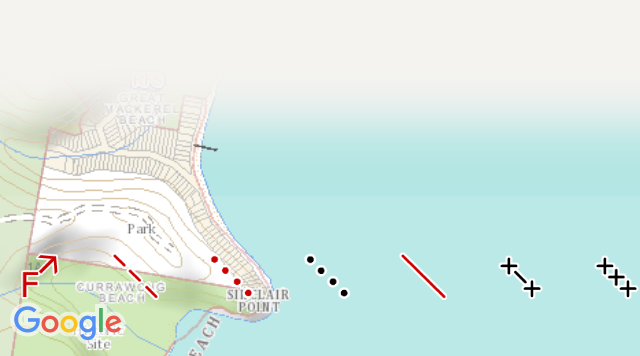
Select a line type from the bottom toolbar. You can scroll left to right to access different feature types.
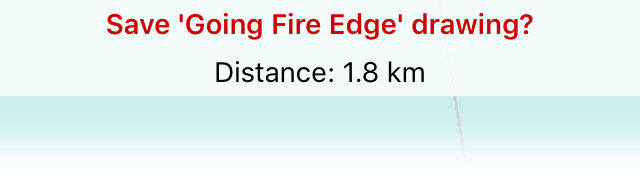
The Map view will enter line drawing mode. You will see the following at the top of the window.
Draw a line on the map by dragging your finger across the screen.
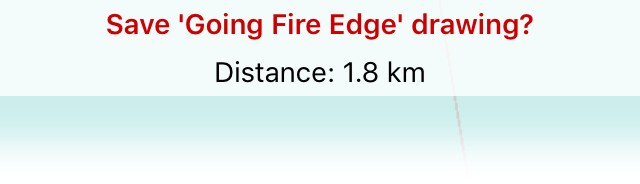
Line distance will appear at the top of the map. If you close the shape, the enclosed area will also appear for the line.
Tap the tick button on the bottom left to save.
The line will be added on the map.