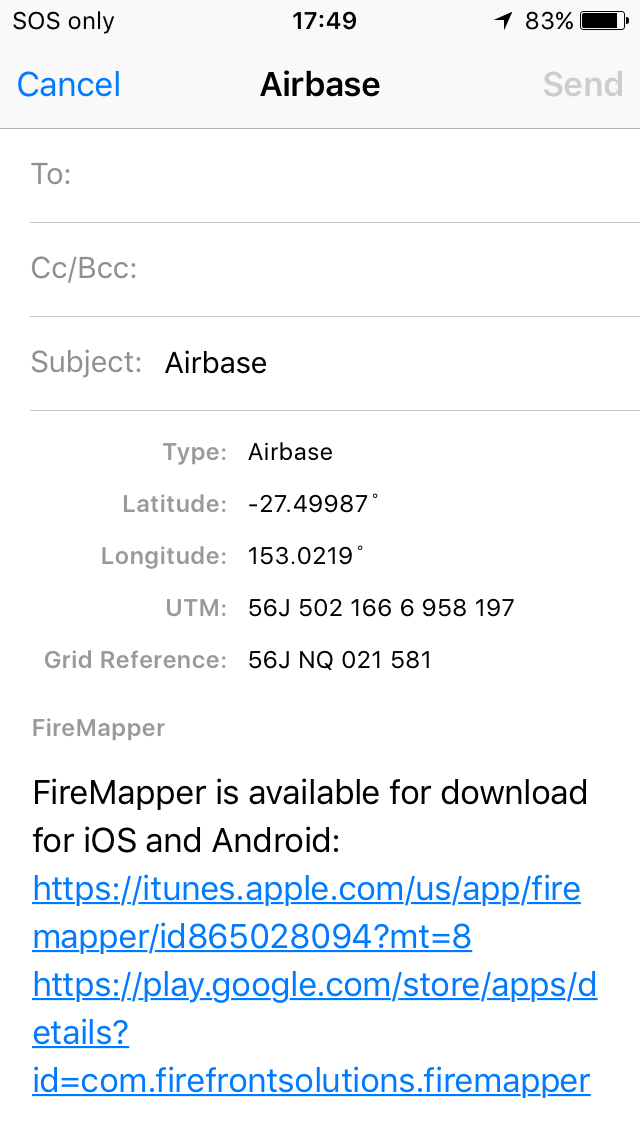
 Email: Sends the selected feature as an email message.
The email message includes a screenshot of the map and any GPS photos that are attached to the selected feature if available.
This option is available for all map features. You can set the default email addresses for email messages in the Main Menu->User Profile.
Note
On iOS devices, this uses the Apple email client. You will need to have your email
account configured in it for this to work.
 Text: Sends the selected feature as a text message.
The text message includes a screenshot of the map and any GPS photos that are attached to the selected feature if available.
This option is available for all map features. You can set the default mobile numbers for text messages in the Main Menu->User Profile.
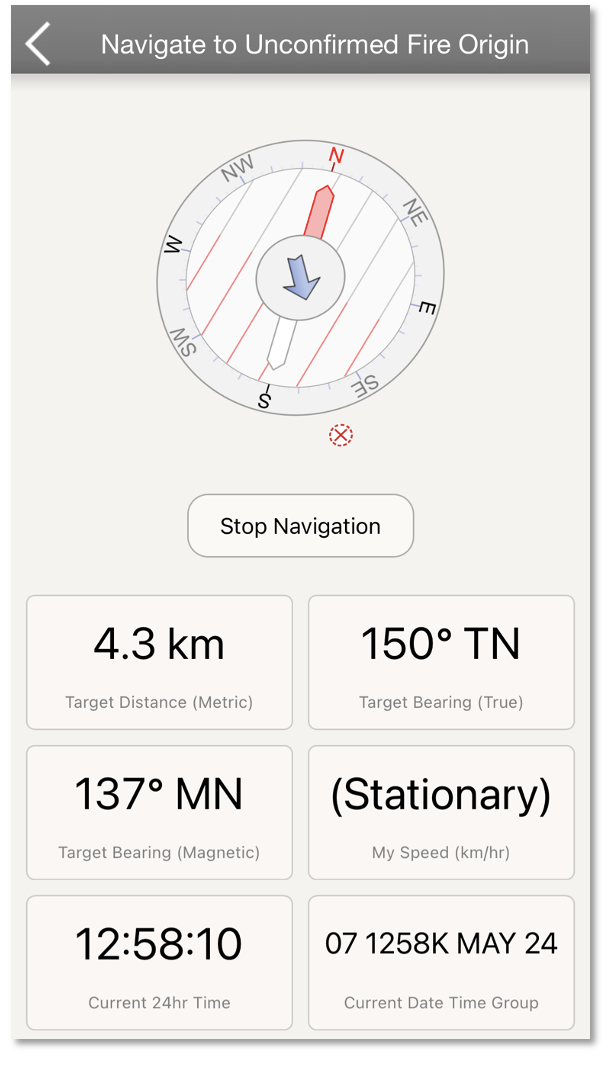
 Navigate With FireMapper: Navigates in a straight line to the selected point in FireMapper.
The button will point in the direction of the selected feature using the internal compass. This is handy if you need to know the approximate
direction of the feature on the map without having to start a navigation.
Note
This functionally is not available yet on the Android.